Showing posts with label Chrome. Show all posts

Search Google Maps by Address [tool]


Now you can search Google Maps with address,area,longitude,latitude,pincode through the Google api.
I now designed a tool to search google maps directly with the input text.

The idea behind google map from address is simple.It is based on reverse geocoding google map.I am using google map v3 api.

Lets get right to the topic
to get map from Google you need location’s longitude and latitude
you can get location geocode from google map Geocoder function.

How google maps by address works
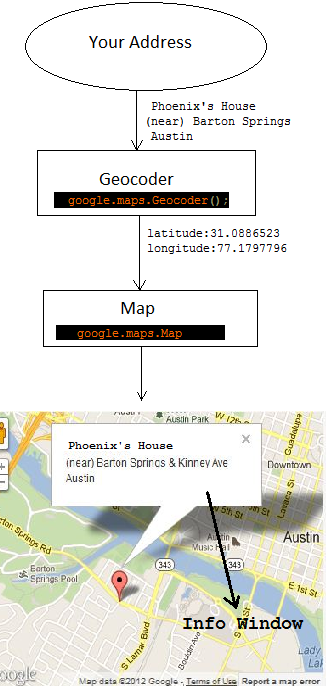
google map latitude longitude thumb Google maps by address
Stage 1 : Your Address goes to geocoder.
address includes address, city/town , State, postalcode and country.
Function : google.maps.Geocoder();
Stage 2 : Geocoder fetch your address’s latitude and longitude.
Stage 3: These latitude and longitude value passed to the google map function.
Function : google.maps.Map();
Stage 4: The google map then represent these latitude and longitude value in map.
you can design your info window of address here by
Function : google.maps.InfoWindow()
Also you can set the title of your location by marker function.
Function : google.maps.Marker()

Feature of google maps by address widget

  • You can select from all the four view of google map.
    ROADMAP displays the normal, default 2D tiles of Google Maps.
    SATELLITE displays photographic tiles.
    HYBRID displays a mix of photographic tiles and a tile layer for prominent features.
    TERRAIN displays physical relief tiles for displaying elevation and water features.
  • You can set the zoom level of the map.
  • You can get longitude latitude from google maps address(can find geocode).
  • Find location by latitude longitude google map.

       
                                                      Live Demo


Preview:

googlemap by address thumb Google maps by address

Source: Buffernow.com

Backup your Google data by Google Takeaway

Google expanded its Takeaway service to download all your Google data on the web.
Now its available to download all original videos a user has uploaded to YouTube and also all the Google data.It can be also useful to merge all your Google+ accounts.
Google takeaway is a service that lets users take back their data from various Google services, including Buzz, Drive, Picasa, Profile, Stream, Voice, YouTube, as well as +1s, Circles, Connections and Streams in Google+.In reality, Google Takeout is used to export your data out from Google to move on to other services.

How to use Google Takeaway:

1. Go to Google Takeaway site from here and login with your Google account.


2.Now you can see some Services listed below.Now select any service which you wanted to backup.and then click on Create Archive.


3.You can see some progress bar which is preparing a archive file.Once its get complete, Click on Download and save to your computer.


The intention behind Google Takeaway is freedom, the liberty to move on. As said by Google Data Liberation Front, If you know that you can take out your data, you might feel more comfortable putting more in.

Delete all Facebook Messages with a Single click

Facebook is the Fastest Growing Community in the world and is the top Social Networking Website.It now consists of billions of users daily accessing it.We too have friends on Facebook and chat with them but its a time taking task to delete the conversations.

Actually our Conversations are been saved as Chat Logs. Some people needs Facebook history to access the old conversations and some need to erase them.

Messages are been saved as an Archive on Facebook and it takes much time to delete the messages one by one.So here i present you the best chrome extension to delete all messages at a time.

Facebook Fast Delete Messages is the best chrome application in which it adds a
 special button in your Facebook messages to delete all messages at once.

Delete all Facebook Messages with a Single click[How to]:

      1.  Go to the Extension Page and add it to chrome.

     2. Click the Add button and confirm the extension on your chrome.

     3. Its done.Now a button will appear on your Facebook messages and you can delete without wasting time.


Load Gmail Faster in Slower Internet Connections[How To]

If you are surfing with a slower internet connection like dial up or wireless wi-fi ,Gmail takes much time to load all the mails.So here Internet is major leading factor which decides the speed loading of Gmail in slow internet connections.

Here i present you some ideas how to make Gmail load quicker in slow internet connections...

1.Reduce the number of conversations per page:

By default Gmail loads 50 mails per page,but its not necessary to load  50 per page.You can make them change  to 10,15,20,25,50,100. Its best to keep 20 mails per page.
To change this settings go to  Settings > General


2. Turn off keyboard shortcuts
Consider turning off the keyboard shortcuts so that Gmail doesn’t check for keystrokes while logging in. To turn off keystrokes, navigate to settings > general and check the radio button “Keyboard shortcuts off”.

3. Directly Login to the older version
Gmail has an older version with a basic html interface that is ideal for slow internet connections (dial up or wireless router). You can access the basic html version of Gmail using the following link.
                                                Gmail – Basic html
Bookmark the above link in your browser and use it to login to the basic html version of Gmail automatically.

4. Use the mobile version of Gmail
The mobile version of Gmail which is accessible from http://m.gmail.com, is even lighter than the basic html version. You are given a minimalistic interface to read emails and there is no chat, labels or advertisements.
Here is how the mobile version of Gmail looks inside the web browser:

5. Disable Web clips
Web Clips show you news headlines, blog posts, RSS and Atom feeds, and relevant sponsored links, right at the top of your inbox. You can disable Gmail web clips to save gmail loading time.


Just uncheck the checkbox “Show my web clips above the Inbox” from settings > web clips.
6. Skip the Browser check
Typing “gmail.com” in the browser address bar would cause Gmail to check for the browser being used. You can skip this browser check by using this link.
7. Disable labs for performance gain
You can temporarily disable labs and login to gmail using this link. This would disable Gmail labs temporarily so that you can login to your gmail account quickly.
But if your internet connection is slow, you should permanently disable labs.
       1.  Go to Settings > Labs.
       2.  Select the Disable radio button by the features you’ve enabled.
       3.  Click Save Changes.

8. Link multiple Gmail accounts and check email at one place
If you have multiple Gmail or Google apps accounts, you have to frequently login and logout to check all your emails. A good idea would be to link multiple email accounts and check email from one gmail account. This will save precious time and you can get rid of the login-logout cycle.
9. Get emails as Rss feeds
You can get emails as Rss feeds. The subject line of the email appears as a new item in the feed reader and you can keep an eye on incoming messages.
10. Use Igoogle when Gmail inbox Freezes
When the Gmail inbox fails to load, try adding a widget in I-Google homepage to read Gmail messages without opening Gmail-inbox.
11. Use a faster browser
Quit using IE or Firefox and switch to Google chrome or Safari to check Gmail. I have observed increased loading speed of Gmail in Google chrome and Safari. You can speed up Firefox and IE7 for better loading speeds.

12. Use a Desktop email client or switch to Google Gears
You can use outlook to add your Gmail and Google apps accounts and receive emails in your desktop. Hence if the internet connection is slow and hangs up, you can still read older messages as they are saved locally in your computer.
Alternatively, you can use Google gears which will download and save email messages for offline viewing.

13. Use a Desktop notifier to get new email notifications and stop checking email every now and then
You can use a free utility to automatically check for new emails of multiple Gmail or Google apps accounts from desktop. When you get new emails, you can read them from the notifier window itself. Hence you can avoid logging in to your email account and read or delete  messages from desktop.


There are all the techniques discussed to load Gmail quickly in slow internet connections such as Wifi- dial up or when using a wireless router. Do share your tips and suggestions in the comments.